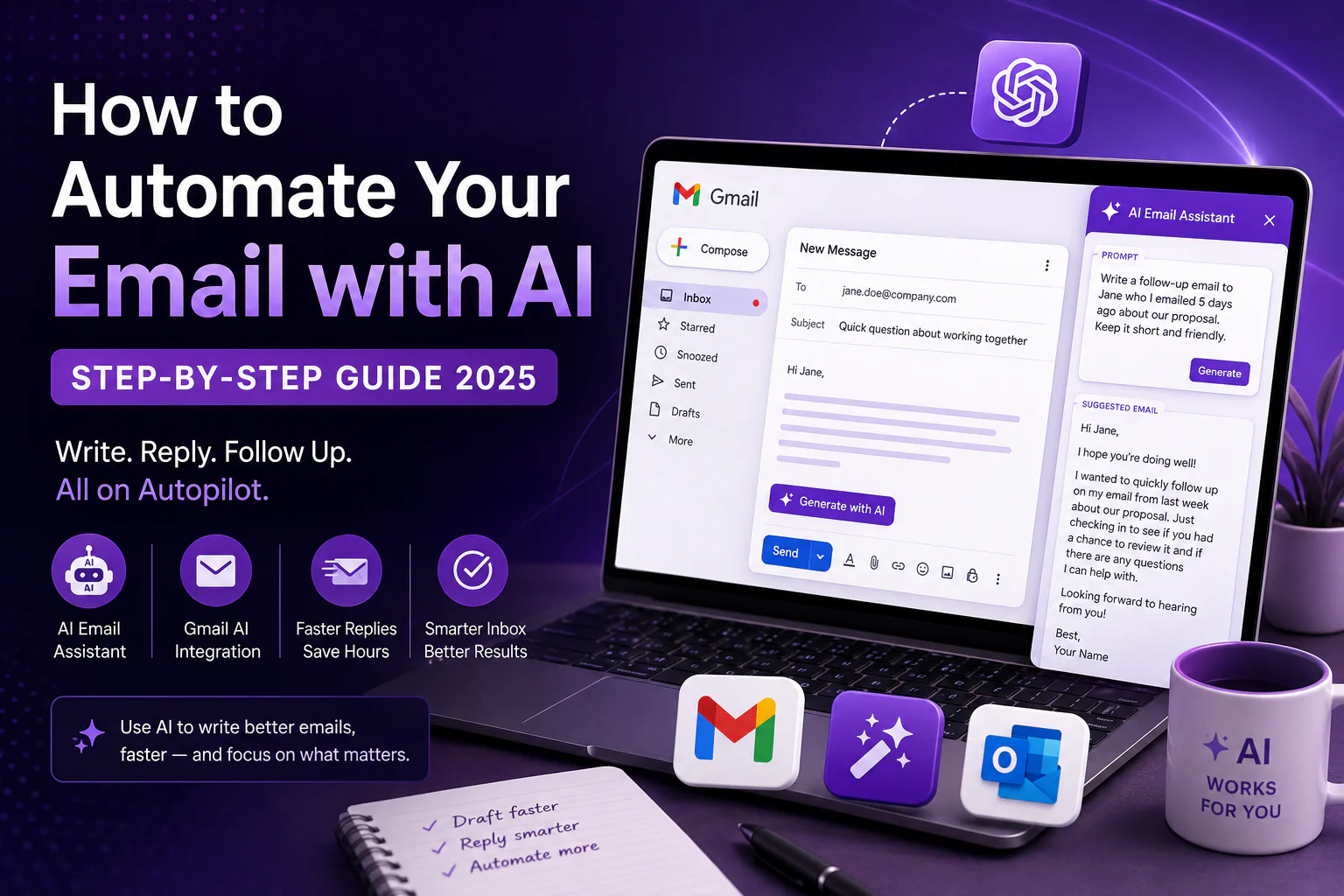
Email overload is real — the average professional sends and receives over 120 emails per day. The good news? An AI email assistant can handle a huge chunk of that workload automatically. In this step-by-step tutorial, we show you exactly how to automate your email with an AI email assistant using ChatGPT and Gmail, so you can reclaim hours every week. Whether you want an AI email writer for cold outreach, replies, or follow-ups, this guide covers it all.
Why Use an AI Email Assistant?
Before diving into the setup, here is why an AI email assistant is worth your time:
- • AI email assistant tools can draft replies in seconds, saving 2–4 hours per day
- • An AI email writer ensures consistent tone across all your communications
- • Email automation AI reduces mental fatigue from repetitive inbox tasks
- • Gmail AI integrations work natively inside your existing workflow
According to McKinsey’s research on workplace AI, email communication is one of the top three tasks where generative AI delivers measurable productivity gains.
Step 1: Set Up ChatGPT as Your AI Email Assistant
The first step to building your AI email assistant workflow is connecting ChatGPT to your Gmail. Here is how:
1. Go to chat.openai.com and sign in or create a free account.
2. Install the ChatGPT Chrome Extension or use a Gmail add-on like Zapier’s AI Email Writer for deeper automation.
3. Open Gmail and navigate to Compose a new message.
4. Activate your AI email assistant — if using the ChatGPT extension, a sidebar will appear alongside Gmail.
5. Paste your prompt into the AI email writer and hit Generate.
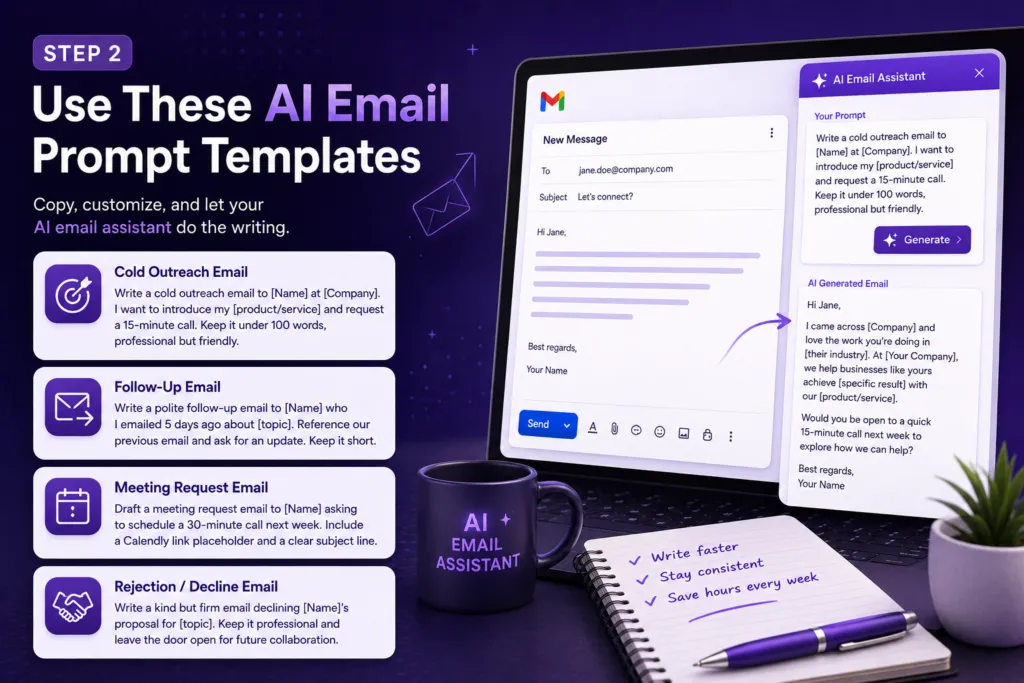
Step 2: Use These AI Email Prompt Templates
Here are ready-to-use prompt templates for your AI email assistant. Simply copy, customize, and paste:
Cold Outreach Email
Prompt: “Write a cold outreach email to [Name] at [Company]. I want to introduce my [product/service] and request a 15-minute call. Keep it under 100 words, professional but friendly.”
Follow-Up Email
Prompt: “Write a polite follow-up email to [Name] who I emailed 5 days ago about [topic]. Reference our previous email and ask for an update. Keep it short.”
Meeting Request Email
Prompt: “Draft a meeting request email to [Name] asking to schedule a 30-minute call next week. Include a Calendly link placeholder and a clear subject line.”
Rejection / Decline Email
Prompt: “Write a kind but firm email declining [Name]’s proposal for [topic]. Keep it professional and leave the door open for future collaboration.”
Step 3: Set Up Gmail AI Automation with Zapier
To take your email automation AI to the next level, connect Gmail with ChatGPT via Zapier:
6. Create a free Zapier account at zapier.com.
7. Create a new Zap: Trigger = New Email in Gmail, Action = Send prompt to ChatGPT via AI email assistant API.
8. Configure your AI email writer prompt template in the Zap action step.
9. Add a final action: Save the drafted reply as a Gmail Draft or send automatically based on your email automation AI rules.
Step 4: Use Copilot Email for Microsoft 365 Users
If you use Outlook rather than Gmail, Copilot email is your best option. Microsoft’s Copilot email feature is built natively into Outlook as part of Microsoft 365 Copilot. With Copilot email, you can:
- • Copilot email: Summarize long email threads instantly
- • Copilot email: Draft replies based on your previous messages and tone
- • Copilot email: Schedule and prioritize emails using AI-powered inbox management
Learn more about Copilot email capabilities in our Microsoft Copilot Review 2025.
Best AI Email Assistant Tools in 2025
| Tool | Platform | Best For | Price |
| ChatGPT + Gmail | Gmail | Custom AI email writer prompts | Free / $20 mo |
| Copilot Email | Outlook / M365 | Microsoft 365 users | Included in M365 |
| Lavender AI | Gmail / Outlook | Sales email optimization | $29/mo |
| Superhuman AI | Gmail / Outlook | Speed & triage automation | $30/mo |
Tips for Getting the Most from Your AI Email Assistant
- • Always review and personalize AI email assistant output before sending — AI can miss context
- • Build a personal library of AI email writer prompts that work well for your industry
- • Use email automation AI for repetitive templates, but keep high-stakes emails human-written
- • Pair your AI email assistant with a CRM like HubSpot for full sales email automation
Final Thoughts on AI Email Automation
An AI email assistant is no longer a luxury — it is a competitive necessity. Whether you use ChatGPT + Gmail, Copilot email in Outlook, or a dedicated AI email writer like Lavender, the right email automation AI stack can cut your inbox time in half. Start with the prompt templates above, refine your workflow, and let AI email assistant tools do the heavy lifting. For more AI productivity tips, visit MIT Technology Review’s AI section.